Showing posts with label writing tool. Show all posts

How to Manipulate Scrivener Labels

So last week I participated in #YAGetsStuffDone on Twitter, which was a tag that lasted a week and encouraged goal-setting and cheering each other on to get their goals done. One of my goals was to finish plotting a project I'd barely started brainstorming, which I did both in Word and Scrivener simultaneously, writing the synopsis in Word and transferring it over to Scrivener on scene cards to get everything ready for drafting.

When I finished on Saturday, I posted my results, which looked like this:


A lot of people appreciated the color coding, as I did (it's so pretty to look at!), and some asked how to change the colors around in Scrivener, so I figured I'd write a quick post about it.

You can do color coding for a whole host of things—for two projects I drafted with chronically ill characters, I used the colors to signify different pain levels, for example—but I most often use it when I'm drafting a dual or multi-POV novel.

When writing a multi-POV novel, each color signifies a different POV. I like to do it this way because it helps me visually see the spread of different POVs, so no one character gets too much (or little) screen time. This is especially helpful in the brainstorming stage because it forces me to think about whose POV each scene will take place in and why.

Luckily, manipulating the labels in Scrivener so I can do this quickly is really easy.

  1. Right click an index card —> Label —> Edit...

  2. Open Meta-Data Settings. Here you can change the name of your labels, add more labels, remove some labels, change the colors by double-clicking the color box, etc. As I said, I do one label per POV character, but however you set it up is up to you. Once you're done, click "OK."


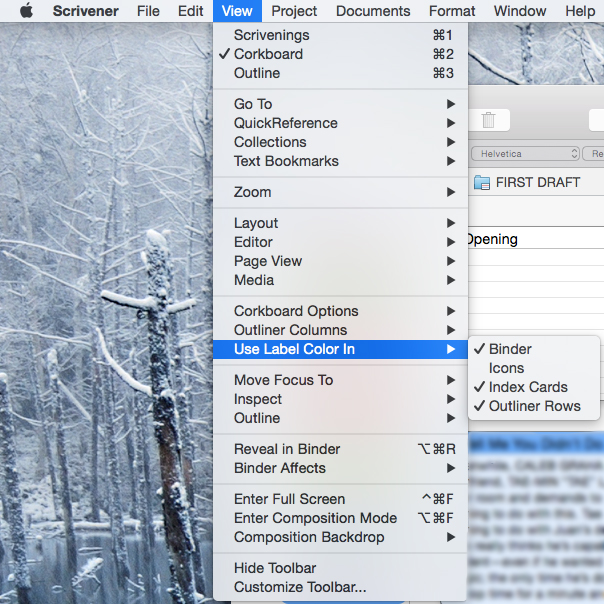
  3. View —> Use Label Color In —> Pick your settings. I like to check off Binder, Index Cards, and Outliner Rows, so the index cards change colors and so do the labels in the row of scenes. If you want the little index card icon to change colors too, then you can also check off "Icons" but I don't usually bother with that.

And that's it! From there, whenever you want to change the label (or color) of the index card, you just Right click —> Label —> [Pick your label]. The colors will change automatically as you go label to label. 

It's that easy and the results are not only visually pleasing, but helpful for organizational purposes. I definitely recommend it if you like to add a little splash of helpful color to your outlines. 

Note: Like many Scrivener features, I'm not sure if all of this is available in the Windows version. It might be! But it might not. I have the Mac version so I'm not sure.

Have you ever used the label feature in Scrivener?

Twitter-sized bite:
Want to color-code your outline in Scrivener? @Ava_Jae breaks down an easy way to do so. (Click to tweet)

Vlog: How to Make a Fantasy Map

So I've covered world building and fantasy languages, and now I'm adding one more world building tool: fantasy maps! Here's your step-by-step guide to my map creation process.


RELATED LINKS:


Have you ever made a map for a WIP?

Twitter-sized bite: 
Think a map may be helpful for your WIP but don't know where to start? @Ava_Jae vlogs her step-by-step process. (Click to tweet)

We Are Our Own Worst Critics

Photo credit: CraigMoulding on Flickr
Over the weekend I stumbled over my awesome agent sib Katie Locke's newest post, "Juggling, Attention, Ambition, and Goal-Setting." I frequently enjoy Katie's posts because like me, she works best with organization, and she has some really great methods that have helped me in the past.

So anyway, in the post she mentioned putting all her potential project ideas into a spreadsheet to help her organize and also strategize with her agent. This was the second time I'd heard her mention this spreadsheet, which reminded me of my own Evernote note I called my Project Pipeline, but it sounded more organized than the bullet list I had, so I tried it out and made my own spreadsheet.

Now, you guys might remember me mentioning I'm not the kind of writer overflowing with ideas. I often struggle to get any ideas at all, and then kill most of them off when brainstorming/plotting, and then kill about half of those survivors within the first 10,000 words of first drafting, and then often kill half of those after I draft them because...I'm just not feeling it anymore.

So the ideas that do rise to the surface and actually make it to the editing stage have gone through a lot of hurdles already. This is why I often don't feel comfortable talking much about the projects I'm working on while I'm brainstorming and drafting—I know all too well the likelihood of that project making it to the revision stage is...not the best. So telling other people about those ideas before I know for sure whether or not they'll ever get drafted makes me nervous, because once I've told them, I don't want to let them down by deciding not to pursue it.

All of this played into why when I was between projects not too long ago, I was having major self-doubt issues. I hadn't drafted something new in over a year, I was dealing with that what if I never publish anything again ever fear (not uncommon amongst published writers, regardless of how many books they've published), and I was uncertain about the few ideas I did have—they were only partially brainstormed and I felt them slipping through my fingers.

Add this to my first ever impending book release, plus college graduation looming closer and closer, and you can understand why my confidence was pretty shaky, to say the least.

So anyway, point is I had this sense that I didn't have all that many ideas. That I was running out of options and needed to come up with something new ASAP. So I first drafted a thing, and that helped, and then I stumbled over an idea I'd written and partially brainstormed during class then forgotten about, and that helped too. And then I saw Katie's post and made a spreadsheet and realized...

Well. Apparently I have nine projects to play around with. One is already written and ready to go. Some are fully plotted and need to be written. Some were written ages ago and need an overhaul. One I finished plotting over the weekend.

But as much as my brain sometimes makes me believe otherwise, looking at the spreadsheet I realized they were all viable options. Some needed more work than others, sure, and some were absolutely not viable options until I did some major revision surgery (or rewrote entirely), but they were possibilities. Real, actual possibilities.

Nine of them.

It was kind of amazing to see how different it felt to move these projects from an unnumbered list to a spreadsheet. To realize that even if I tossed a bunch of them, I still had plenty more to play around with.

It was also a really great reminder that we are our own worst critics. For so long I was so worried about not having something new to work on, but all I needed to do was sit down and refocus. All I needed to do was give myself some credit for the work I'd already done.

A little organization can go a long way in terms of both productivity and boosting your confidence. Sometimes all we need is to tell our brains to be quiet for a moment while we reflect on what we have simmering on the back burner.

How do you keep track of your ideas or potential projects? 

Twitter-sized bites:
How can spreadsheets boost your confidence? @Ava_Jae explains how @bibliogato's method helped her. (Click to tweet)
On productivity, confidence, and giving yourself credit for the work you've already done. (Click to tweet)

How to Get Productive

Photo credit: J Dueck on Flickr
So if there's one thing I've learned about setting myself up to have a productive day, is it doesn't just happen on it's own. Productivity is something you have to dedicate yourself to, but sometimes it can be a little hard to focus or hold on to your motivation.

Given that it's important for writers to learn how to make the most of their time, I thought I'd share some productivity tips to help you reach your goals, whatever they may be.

  • Figure out your zone. One of the best things I did for my productivity was figure out when I work best—which for me is early in the morning. I changed my schedule around and became a morning person so I'd have more early morning hours to get things done, but maybe you'll find your best hours are late at night, or at two in the morning (which isn't uncommon!). The key is to experiment a little and listen to yourself to see generally when you work best.

  • Establish accountability. As distracting as social media frequently is, it can also be really useful in terms of establishing accountability. This week on Twitter, for example, there's #YAGetsStuffDone in which YA writers of Twitter are announcing their goals for the week and cheering each other on. More consistently, there's myWriteClub, a (free) site with customizable graphs so you can keep track of your goals with various projects and cheer with others as you progress. Even just tweeting a goal you want to get done on Twitter can often bring a little extra motivation, both because you've made your goal public, and because sometimes people will jump in to cheer you on, which is awesome.

  • Cut out distractions. How you do this is up to you. I usually just close my internet browser and leave it at that (unless I'm using myWriteClub, which I'll explain in the next step), but some people use Self Control to block their access to internet for a given period of time. There's also Forest, which is a mobile app for $1.99 that keeps you from using your phone when you're supposed to be working, which I'm very much considering getting because while I'm good at not opening Twitter on my browser when I'm supposed to be working, I'm not quite as disciplined with my phone. (Forest also has a Chrome version, which I didn't know until just now.) Alternatively, turning my phone face-down on my desk sometimes helps.

  • When drafting, try writing sprints. If you've never participated in a writing sprint before, it's basically an established chunk of time (sometimes thirty minutes, sometimes an hour), where you try to write as many words as possible. Sometimes if you participate with other people, it can become a competition of sorts, which can be pretty motivating and fun. myWriteClub recently set up a writing sprint section on their site which allows for global sprints that I've really come to love and I wrote about here.

So that about covers my productivity tips. What would you add to the list?

Twitter-sized bites:
Need to boost your daily productivity? @Ava_Jae shares her top productivity tips. #writetip (Click to tweet)
Accountability, reducing distractions, & more make @Ava_Jae's list of productivity-boosters. What would you add? (Click to tweet)

How Writers Can Use Pinterest by Alyssa Carlier

Photo credit: Larry Miller on Flickr
I used to think Pinterest was for recipes or fashion blogs—until one time, I got the traffic in one day that I normally get in an entire WEEK. Crazy moment.

Turns out my blog post went viral on Pinterest. Coolest thing? It wasn’t even my pin—someone else read my blog post and decided to pin it. Pinterest can bring in readers even when you're not actively pinning on the site.

Here’s how writers can use Pinterest:

  1. Promote your own blog posts. Create a board JUST for posts of your own blog. That way, when new followers see your profile, they can easily find all your posts in a single place. But of course you should also have boards for pinning other people’s helpful blog posts!

  2. Adapt your images for Pinterest. If you’ve decided to leverage Pinterest as your main traffic source (high five!), use tall images so they take up more space in the Pinterest feed. Include your blog post title in the image as well! Most people are skimming on Pinterest, and a bold headline can catch their attention.

  3. Include a description in your pins. Here’s an easy formula if you’re not sure how to describe your post: problem + explanation + read this post! For example: Tired of YA science fiction cliches? This post discusses ways to subvert science fiction tropes. Read it to make your sci-fi more unique!

  4. Join group boards! To find group boards, search keywords such as “Sci-fi writing tips” in the Pinterest search bar, check out “boards”, and look for those with the grey silhouettes of people in the upper right hand corner.

  5. Include a RELEVANT link in your board descriptions. Say you have an inspiration board for your Fabulous Space Novel. So include in the board description, “Find out more about Fabulous Space Novel here: [link to blog page]!”

  6. Inspiration board for manuscripts. Let’s be honest, this is a procrastination tool more than anything else. But more than once, a pin has helped me visualise a character more clearly … besides, it is super fun.

Do you use Pinterest? Why or why not?


Alyssa Carlier scribbles YA fantasy novels about empowered, diverse girls (like herself) in worlds of magic, madness, and murder (unlike herself). Interested in developing your online presence? Join her takeout army and grab the 30-step action guide to define your blogger trademark!


Twitter-sized bites: 
Writer @AlyssaC_HK shares 6 ways writers and bloggers can use Pinterest to their advantage. (Click to tweet
Writers, do you use Pinterest? Join the discussion hosted by @AlyssaC_HK on @Ava_Jae's blog. (Click to tweet)

myWriteClub’s Word Sprints

Photo credit: manoftaste.de on Flickr
So after over a year of not drafting anything new (because So. Many. Revisions.) over the weekend I finally started playing around with a new sekrit thing. For the longest time I’d depended on Write or Die to get me through first drafts, largely because I found I work best with a timer/word count system and something encouraging to me to stop thinking and keep writing. While I was in endless revision mode, however, I’d heard that my favorite writing buddy myWriteClub had launched a new writing sprint feature, so you can bet I was eager to try it out. 

So I did, two days in a row. And I have to say, I like it even better than Write or Die

Write or Die functioned with negative reinforcement—in that the screen would turn red and a loud noise would start up if you stopped typing for too long. And while this was pretty effective, it also meant I quickly figured out a loophole that made the negative reinforcement moot, anyway. Which is fine, because it still kept me typing, but anyway. 

myWriteClub’s word sprints, however, use positive reinforcement to encourage you to write more, and if you want, it also connects you to other sprinters to race against. 

So how does it work? 

First you log into myWriteClub and go to their sprinting page. From there you can join either a global sprint or a custom sprint. From there you type in the browser, which looks like this: 


The sprints start every half hour and go for 25 minutes, but you’re free to write before or after that—your word count will continue to grow. You get a green star for every 100 words that you write, and a gold star for every 1000 words. The progress bar also grows as you type until you reach 100 words, you get a star, and it starts over. 

I haven’t sprinted with anyone else yet, but if you do you’ll be able to see the other person’s word count grow, which could be fun if you’re competitive (you can’t see each other’s words, though). It automatically saves to dropbox if you have that activated, and otherwise just automatically saves to the browser—I was pleasantly surprised to find my words from the previous day still in the browser when I logged in the next day (according to the site, your words are stored on your computer and not on myWriteClub’s server, so don’t worry). Usually I write, copy/paste whatever I wrote into my Scrivener doc, then close out. There’s also a chat function which I probably won’t use because distracting. 

At some point I’ll probably try sprinting with others, but I still find it really helpful and motivational when writing alone. Between the timer counting down, which encourages me to write faster, and the progress bar and stars, the interface really helps me focus and get words down on the page. Which ultimately is the most important part. :) 

I definitely recommend myWriteClub’s word sprint feature to those who like a little competition and/or accountability. It’s a fantastic addition to an already awesome productivity site. 

Have you ever used myWriteClub’s word sprint feature?

Twitter-sized bite: 
Need some writing motivation? Check out @my_write_club's Word Sprints feature and start first drafting! (Click to tweet)

Favorite Online Writerly Resources Roundup

Photo credit: Brendan Lynch
So as many of you have probably gathered, I spend a lot of time plugged in. Like, probably more than I should. Which means I’m all over the internet all the time, basking in social media sites of all things writerly and publishing.

And so, when someone kindly suggested I share some of my favorite resources, I thought a roundup was in order.

Without further ado, here are my favorite online writerly resources, and why I love them.

For motivation and progress tracking: MyWriteClub
MyWriteClub is still in beta, but I use it constantly when I’m making any sort of progress—whether revisions or drafting. It’s a nice little community where you can keep track of all sorts of customizable progresses with charts and what no, and I wrote about it here.  
Point is, it’s very motivational and has the added bonus of very nice charts, which I’m basically addicted to know. Très recommended. 

For querying: QueryTracker
I obviously don’t use this anymore as I’m done querying, but I did find it very helpful when I was querying. It’s a great way to keep track of your queries and find literary agents to submit to, and as a bonus, it recently got a new facelift. 

For pitch contests: @brendadrake, @AuthoressAnon (Miss Snark’s First Victim) & @Michelle4Laughs 
These lovely ladies frequently host contests for writers searching for representation. I got my agent through one of said contests, so I can tell you first hand it works. Plus, they’re all very nice. Definitely follow them if you’re on Twitter! 

For writing & publishing tips: chasingthecrazies (@atrueblood5), Writers Helping Writers (@AngelaAckerman & @beccapuglisi), & The Daily Dahlia (@MissDahlELama).
All of these blogs (and their respective creators) are fabulous for slightly different reasons. Chasingthecrazies has loads of agent interviews about what they look for in the first five pages, as well as other great writing tip posts. Writers Helping Writers is chock full of great information to (as the title says) help you with your writing. The Daily Dahlia has so much really fantastic information not only on writing, but on pre- and post-publishing tips and information about the industry and supporting other writers and…yeah. You should check it out. 

For diverse representation education: We Need Diverse Books (@diversebooks), Corinne Duyvis (@corinneduyvis), Marieke Nijkamp (@mariekeyn), Disability in Kidlit (@DisabilityInLit), DiversifYA (@_DiversifYA), Diversity in YA (@diversityinya), & Gay YA (@thegayYA).
If you care about diverse representation and want to learn more about why it’s important and how you can help, make sure you follow basically everyone listed above. Each of them share really valuable information about different aspects of diversity and they’re all super insightful. I’ve learned a great deal from them. 

For book recommendations/reviews: B&N Teen Blog (@BNTeens), Rich in Color (@Rich_in_Color), IceyBooks, The Midnight Garden
Not sure what to read next? Looking for some book reviews? The above blogs have really fantastic reviews and recommendations for loads of books. Definitely recommended! 

So that’s it! What are some of your favorite writerly online resources? 

Twitter-sized bites: 
Looking for some online writerly resources? Writer @Ava_Jae rounds up her favorites. #writetip (Click to tweet)  
Motivational tools, writing & publishing tips, book reviewers, & more! @Ava_Jae shares her favorite writer resources. (Click to tweet)  

How to Import Word Comments into Scrivener

Photo credit: MIKI Yoshihito (´・ω・) on Flickr
UPDATE: I have since learned (thanks to a commenter and some experimenting) that you can skip ALL of this and just copy and paste. Who knew? Clearly not I. Happy Scrivener-ing!

Up until basically last week, I was under the impression that it was impossible to auto-import CP comments from Word into Scrivener. And so, I would sit for hours, importing CP comments by hand—that is, retyping them into Scrivener.

When I received my CP comments for the latest WIP, however, I knew there was no way I’d be able to do that this time. Because there were over 1,300 of them. (Yeah.)

So I had a choice: either edit entirely in Word (which, I mean, was an option, but not my favorite one), or spend a ridiculous amount of time importing by hand, which I’d pretty much already decided wouldn’t be worth it.

Or was there another choice?

After doing some internet scouring, I came across this post on importing documents from Word into Scrivener. I’d seen the post before, and already knew the process described in the post didn’t import comments, but this time my Google search directed me into the comments on the post…where I found my answer: RTF files.

After some playing around, I managed to figure it out with a little help from the post. And so here's the process I used:

  1. Open all documents containing CP notes in Microsoft Word. For me, that was three documents this time. The reason you need to open everything in Word first, is before you import to Scrivener, you need to merge all of your documents with CP notes into one Word doc. Which is a thing! A very useful thing. Anyway...

  2. Go to Tools > Track Changes > Compare Documents.

  3. Choose two of your documents. You will now see this menu:


    If you want to attempt to preserve the tracked changes your CPs suggested, then choose the document with the most tracked changes as “Original document.” I will say, however, this attempt to preserve tracked changes is somewhat futile as it gets messed up when you import to Scrivener anyway. So up to you. 

  4. Click “OK” and save your new document. Word creates a completely new document now with the comments from both of the documents you just “compared.” Save this document, then repeat this process as many times as you need (using your new merged document with the next one you want to merge with). 

  5. Save your final document as an RTF. Once you have your brand new, shiny document with all of your CP comments in one place, save your file as an RTF. This is what you’ll be importing into Scrivener.

  6. Open your project in Scrivener. Self-explanatory. 

  7. Go to File > Import > Files…

    And choose your new RTF file. This will bring in your newly merged document into Scrivener, with all comments intact. YAY! 

Some caveats:

  • You will have to redistribute your chapters or scenes into separate Scrivener scenes again. When you initially import, it’ll all be in one ginormous Scrivener scene, so you’ll have to reorganize however you had it before you compiled it into a Word document. This is a little annoying, but relatively easy and totally worth it, IMO. 

  • Tracked changes will be a mess. So this is a more significant downside—you’re going to lose a lot of the tracked changes your CPs suggested, both because they get messed up in the Word merge, and because Scrivener doesn’t recognize tracked changes. Instead, Scrivener will automatically try to implement the tracked changes that remained intact in the merged document, which is a bit of a headache because it doesn’t implement it correctly and it’s not marked, so you kind of just have to catch them.

    I didn’t know that when I imported, so I suspect I’ll be catching them for a while. I think, however, if you go through your Word document and fix all the tracked changes there before you import into Scrivener (and, even better—before you merge the documents in Word), this shouldn’t be a problem. I’ll be doing that in the future. 

  • All of your comments will be imported as if they came from the same person. As in, they’ll all be the same color. Which isn’t a big deal to me. I plan to color code mine differently once I’ve brought my comment count down to a manageable number. 

  • If two (or more) CPs comment on the same line their comments will be merged. You’ll be able to tell, because there won’t be a space between the end of CP 1’s comment and the beginning of CP 2’s comment. I actually don’t mind this—it lets me see multiple opinions in one CP box, and it’s I found it pretty fun when all three of my CPs commented on the same thing. 

So that’s it! I hope this saves you some time in getting Word comments into Scrivener. I know I, for one, will never be manually importing comments again.


Twitter-sized bites: 
Ever wonder how to get Word comments into Scrivener? Writer @Ava_Jae share the process she uses to do just that. (Click to tweet)  
Did you know you can import Word comments into Scrivener? Writer @Ava_Jae explains one method of doing so. (Click to tweet

How to Use Comments in Scrivener

Photo credit: kukkurovaca on Flickr
Once upon a time, I used to think Scrivener didn't have much of a commenting system, and then I discovered the truth and it basically changed how I approach revisions forever. Because it turns out Scrivener's commenting system is pretty fabulous.

As it's not one of Scrivener's frequently spoken about features, I'm thinking I'm not the only writer who didn't know much about it, and so I thought I'd share exactly where to find them, and how to use them.

Here we go:

By default, Scrivener’s right-hand sidebar is set to Project notes, where you can leaves notes for referencing while you work on your book. There are, however, other greatly underutilized sections in that sidebar, and comments are one of them.

  1. Click the comments icon (a speech bubble with an “n” and an asterisk). It looks like this:


    Congratulations! You have now opened the Comments & Footnotes sidebar. It’s pretty magical, let me tell you. 

  2. Highlight whatever text you want to leave a comment on. This part is just like Word—the first step to commenting is highlighting whatever line or word you’re going to comment on. Easy! 

  3. Click the add comment button. It’s the one that looks like a yellow speech bubble. See below:
Voila! You can now leave yourself comments. But there’s more!

  • You can change the colors of the comments. This is probably my second favorite part. I like to color code by CP (although, when I have a crazy high number of comments, that doesn’t always happen). This time I’m thinking about possibly organizing types of comments by color because colors are fun. Anyway.

    The steps for changing colors are pretty easy. You right click whatever comment you want to switch the color of and then choose from the following menu.


    You can even set a custom color, if you want! It’s pretty schnazzy. 

  • When you click on a comment in the sidebar, it jumps to the spot in the manuscript. I said colors were my second favorite part, because this right here is what makes Scrivener comments better than Word comments, in my opinion. If you have your whole manuscript selected, you can view all the comments in your manuscript in the sidebar and when you click one, it’ll jump to that spot. Or if you have just one chapter open, it’ll show you all that comments in that one chapter. Or whatever other selection you make.

    This makes organization really easy, and also allows you to jump around and make changes however your heart desires, as well as giving you a general overview of the comments in your manuscript. 

Now, there are two pretty big downsides of Scrivener comments. Or one a half.

Firstly, as far as CP purposes go, track changes in Word is way superior. In Scrivener, there is a sort of track changes thing, but it basically just changes the colors of changes you make (which I like! But isn’t all that useful for seeing what changes your critique partners recommend). Also, as far as I can tell, you can’t import tracked changes, so you’ll have to make the changes manually anyway.

Second, up until yesterday I thought it was impossible to import comments from Word into Scrivener. But! I have figured out a way and I will share that with you guys on Friday (UPDATE: the post is live). This is still a half downside though, because the process is far from perfect and has some caveats. Still.

All of that said, I still love using the comments feature in Scrivener, and so the caveats are worth it to me. You may agree, or you may not, but I think it’s worth experimenting with. :)

Do you use Scrivener comments? Do you have any tips?

Twitter-sized bites: 
Did you know Scrivener has a commenting system? Writer @Ava_Jae breaks down where to find it & how to use it. (Click to tweet)  
Love Scrivener? Writer @Ava_Jae discusses why she prefers Scrivener comments over MS Word & how to use them. (Click to tweet)

End of Year Countdown: 5 Top Fives of 2014

Photo credit: Amodiovalerio Verde on Flickr
It’s the last post of 2014, which means, as is tradition here on Writability, it’s time to share Writability’s annual five top fives of the year! Woot!

These tend to be longish posts, so I’m going to jump right into it. Here is the summary of 2014’s amazingness in terms of writerly awesome.

Top 5 Most Popular Posts (On Writability)

As per usual, these are calculated with blogger’s page view counts. Interestingly, the list is the same as the year before, with a little rearranging.

Top 5 Most Active Commenters

As explained every year, I use Disqus’s handy widget on my sidebar to keep track of how many comments every lovely commenter makes. The system isn’t perfect and only keeps track of accounts, so if you comment on multiple accounts, it thinks you’re more than one person, but anyway, these five fabulous readers are the most active commenters of the Writability community—thank you!

Note: Those with asterisks were on the top five list last year, too. And those with two asterisks were on the top five list the year before that! Double and triple thank yous!

  1. Robin Red*
  2. RoweMatthew**
  3. Daniel Swensen**
  4. Jen Donohue*
  5. S.E. Dee

Top 5 Favorite Tumblr Blogs of the Year

Over the years, tumblr has become one of my favorite social media sites. I’ve learned a ridiculous amount from the gems posted there, and I’ve also really enjoyed the nerdy randomness that frequently appears on my feed.

These are my top five favorite tumblr blogs, as calculated by tumblr based off which blogs get the most reblogs and likes from me.

Top 5 Favorite Writing Blogs of the Year

I’ll openly admit I haven’t been able to keep up with other blogs lately, mostly because of time constraints. That being said, those that I do try to check in with or browse over are pretty great, and here are some of my favorites of the year (in no particular order):

Note: Those listed together are somewhat similar, which is why they’re listed together.

  1. For really excellent (and honest) posts about the publishing industry/getting published: The Daily Dahlia (Dahlia Adler’s blog).

  2. For wonderful weekly round-ups and writerly posts: YA Highway.

  3. For excellent book reviews and cover reveals: IceyBooks & The Midnight Garden.

  4. For agent and writer interviews as well as awesome writerly posts: chasingthecrazies (Amy Trueblood’s blog).

  5. For great pub opportunities, including contests, giveaways and agent information: Miss Snark’s First Victim & Literary Rambles.

Top 5 Favorite Twitter Accounts

Twitter remains my favorite favorite. And these Twitter peoples are amazing (again, in no particular order):

  1. @LucasMight

    Not only is Lucas a ridiculously nice person, but his tweets are sometimes quirky, sometimes insightful, sometimes hilarious, and always interesting. Also, he’s an excellent writer.

  2. @gildedspine & @mariekeyn
    I’m listing these ladies together, because they’re both super wonderfully kind people who are also really amazing advocates. They speak their minds, talk about important issues, and I’ve learned so very much from them both.

  3. @_DiversifYA

    I’m assuming most people already know about WeNeedDiverseBooks, but DiversifYA is another excellent proponent of diversity. They host semi-frequent Twitter chats discussing various aspects of diversity, and they also have great diverse profiles on their corresponding blog that they share on their Twitter. I definitely recommend them.

  4. @MissDahlELama

    Not only is Dahlia yet another uber-nice writerly type, but she’s super insightful as far as publishing things go, and she’s a ridiculously good recommender of books. Seriously, if you ever want a book recommendation, see Dahlia ASAP.

  5. @_Snape_

    I always list Snape in these round-ups because it’s one of my favorite hilarious follows.

    I mean, case and point:


So those are my top fives of 2014—do you have any favorites of the year you’d like to share? 

Also, Happy New Year, everyone! 

Twitter-sized bite: 
Writer @Ava_Jae shares her top fives of 2014—what are some of your favorite writing resources of the year? (Click to tweet)

Manuscript Wish List (MSWL): A Hugely Valuable Resource for Writers

Photo credit: Julie Edgley on Flickr
So just recently, the amazing Jessica Sinsheimer (Sarah Jane Freymann Literary Agency) and K.K. Hendin (author extraordinaire whose book I’ve raved about in the past) announced the launch of their new Manuscript Wish List site. 

For those who haven’t already seen it’s incredible hashtag version #MSWL on Twitter on tumblr,  MSWL is a site where agents and editors share what projects they wish they had in their inbox. That’s right—it’s a peek directly into what agents and editors are hoping to find right now.

For more information about how this supremely awesome idea came to be and what it’s all about, check out MSWL’s About page.

So while I’m no longer in query mode, I did find the MSWL Twitter event extremely helpful (and exciting!) while I was querying, and I know without a doubt that had this site existed a year ago, I would’ve been living on it.

You see, the tough thing about the MSWL Twitter event is it’s much harder to filter (not impossible, mind you, just takes some Twitter savviness and anyway, digression). There also tend to be a lot of tweets and it’s so very easy to miss something in the fray and well, this website? It’s basically genius.

The extra bonus fantabulousness of the MSWL site is you can filter the results by genre (Fantasy, LGBTQ, YA, NA, whatever) or tag (Crossover, Literary Style, Boarding School, Dual POV,  TV/Book/Movie comp, time periods, etc.). From there, you can see the entries, which vary from a couple sentences to a full paragraph all about what that particular agent or editor would love to see.

I mean, c’mon you guys, HOW AMAZING IS THAT? (Rhetorical question: it’s obviously the bomb).

Querying is tough, and doing your query research can be excruciatingly difficult at times, but I suspect this will really help a lot of writers in their search for an agent or editor who will love their work. So if you’re a querying writer, make sure you take some time to browse this amazing site, and don’t forget to thank Jessica Sinsheimer and K.K. Hendin for their awesomeness!

Will you be using this incredible resource? 

Twitter-sized bites: 
Like #MSWL? Don't miss out on @jsinsheimer & @kkhendin's new MSWL website for your query research! (Click to tweet)  
Getting ready to query? Make sure you check out the new MSWL site for agent and editor wish lists. (Click to tweet

myWriteClub: A Fun Accountability Site

So once upon a time, I was looking for a website with NaNo-like word progress functionality available during non-NaNo months. And there was nothing out there, and I was sad. 

Until recently! When I stumbled across this fabulous writer accountability site called myWriteClub


As of right now, myWriteClub is still in beta, so not all of the features are up and running quite yet. That being said, even in beta version, it’s been really fun to play around with.

Like NaNoWriMo, myWriteClub allows you to make projects with goals, then has a little progress chart as you progress through your goal. The chart looks like this (or at least, mine did when I wrote this):


myWriteClub also allows you to follow people, who can then follow you back and see your progress. And because writers are awesome, we cheer each other on and it can be a really nice motivational boost to have lovely people tell you you’re doing great. :)

What’s really cool about the site is you can customize each of your projects and goals to your needs. You set the word count goal, the deadline, the name of the project, etc. and if you need to adjust it, you can.

In the future, myWriteClub plans to have word sprints organized within the site, so you can race your friends and see their progress in real time as you sprint, which I think is completely amazing and I’m super looking forward to that feature going live.

For more information, check out myWriteClub’s about page

All in all, I’ve had a really positive experience with myWriteClub so far, and I look forward to using it more in the future. If you join, definitely let me know and feel free to follow me!

Have you tried myWriteClub? 

Twitter-sized bites:
Writers! Looking for NaNo-like progress charts & accountability? Here's why @Ava_Jae suggests trying @my_write_club. (Click to tweet)  
Have you tried @my_write_club? Here's why one writer says you may want to give it a shot. (Click to tweet)

How to Set Up Writing Goals in Scrivener

One of my favorite aspects of NaNoWriMo in my pre-Scrivener days was it’s ability to calculate how many words you needed to write a day to complete your NaNo goal. This was something I’d always calculated by hand before, so to find a program that did the math for me? Awesome.

You can imagine, then, my joy upon discovering that the very same auto-calculate feature is on Scrivener for Mac. Except it’s a tad bit better, because you can customize it to your needs.

Unfortunately this feature, as of this writing, is still a Mac-only feature. But my hope is this will someday change and I’d guess that when it does, the process will be pretty similar. So.

For my Mac friends with Scrivener! Here’s how to set up your very own writing goal within the program:
  1. Go to Project > Show Project Targets.

  2. Select the word goal (highlighted in blue) and type in your word count goal for your manuscript.

  3. Go to Options…
  4. Select your deadline.

  5. Check “Automatically calculate from draft deadline.” 
  6. If you won’t be writing every day of the week, choose what days of the week you plan to write on.
  7. If you want to write on the day of your deadline, make sure that’s checked off. 
  8. Click OK.
And that’s it! Now every time you write, you can check how many words you need to keep to your goal by looking at “Show Project Targets” (which is under the Project menu, in case you forgot). And at midnight, it recalculates every day (assuming you did step 5) to keep you on target.

I especially love the auto-calculation, because when you miss a day, it adjusts for you so you can easily see what you need to do to make it up over time. And on the other side, when you write more than you need to, it’s pretty gratifying to see the number of words you need to meet your goal slowly decrease over time. :)

UPDATE (6/20/14): I've been told while Windows doesn't have the full functionality shown above, it DOES have a project target section that allows you to set a word goal. So everything before Step 3 works in Windows. Yay!

Do you use this feature on Scrivener? 

Twitter-sized bite: 
Do you have Scrivener for Mac? Writer @Ava_Jae shares how to set up your writing goals within the program. (Click to tweet

Scrivener’s Version of Track Changes

Photo credit: Joe in DC on Flickr
Remember that time I said that I didn’t know if Scrivener had a track changes feature, but I suspected it probably did and I hadn’t found it yet and my Scrivener n00bness was showing?

Well, I was right—Scrivener does have a track changes feature. Or at least, it has it’s own version of it, and I happen to have fallen in love with it.

This is what the first 250 words of my most recently completed MS looks like in Scrivener:
As you may have guessed, those beauteous rainbow colors aren’t there for aesthetic appeal (although they are pretty)—every color represents a round of editing. Blue for the second round, followed by green, then orange, then purple. First round of edits show up red, but I turned the color off while I was editing before I realized how much I like the colors. Anyway.

It’s ridiculously easy to do: on a Mac, you just head on over to Format (in the top menu bar) and choose Revision Mode > First/Second/(etc.) Revision.

What I really like about this system is that I find it really gratifying to scroll through my revised MS and see all the changes I’ve made laid out in beautiful, color-coded organization. It reminds me just how much work has been done with each revision. Plus, if you get tired of the colors, or want to export without having to change the text color in the final document, you can easily remove the colors by selecting Format > Remove Revisions.

And that’s it. Simple, easy and organized.

Do you use Scrivener? What’s your favorite feature?

Twitter-sized bites:
Do you use Scrivener? Here's a quick how to featuring Scrivener's version of track changes. (Click to tweet)  
Do you edit in Scrivener? Here's how to use it to color code your editing rounds. (Click to tweet

How to Use Scrivener's Cork Board

If you’ve been reading this blog for a while, chances are likely that you know my love of flashcards. Or rather, my love of plotting with flashcards. For me, flashcards to plotting is the cheese to my macaroni (that is to say, yum). 

So now that I’ve officially written a full manuscript from first plot bullet to final polished word in Scrivener, I’d like to share with you my favorite feature of all time: the cork board.

The cork board is actually the feature that sold me as far as buying Scrivener goes, and what I love about it is that it allows me to combine my plotting with flashcards method that I’ve grown to adore over the years, with the simplicity and beautiful organization of the computer. (Plus the lack of cramping hands is a pretty nice bonus, too).

So when you open up the cork board view in Scrivener, it looks a little like this:


Or rather, it looks like that if you have some plot points and blurry Photoshop magic at your disposal. But you get the idea.

On the left, you have a list of all of the flashcards on the board. Every flashcard can be titled, with a little summary section that you can fill in while plotting. I use this to lay out my initial plot long before I’ve written a single word in the WIP.

As you write up flashcards, you can move them around, re-title them, delete them, or label them. The manuscript in the screenshot above is a dual-POV MS, so I repurposed the labels to mark the POVs of my two POV characters, which allowed me to keep an eye on the distribution of the POV while plotting and changing things around later on.

Once you’ve finished plotting and you’re ready to start writing, you can open up each flashcard to look like this:


The great thing about Scrivener is that it works in scenes, so every flashcard you open up and type in will be saved in that card. If you decide during revisions that you need to move a scene earlier or later, you can easily do so by going back to the cork board (or using the menu on the left) and dragging it to where it’s supposed to be. For anyone who’s had to cut and paste a scene from one section of an MS Word doc to another, I promise you this is a million and two times easier.

So that’s basically it. Scrivener’s cork board is simple, the organization is beautiful, and quite frankly, I hope to never have to plot without it again.

Have you played around with Scrivener’s cork board feature? If so, what did you think? 

Twitter-sized bites: 
Not sure how to use Scrivener's cork board? Writer @Ava_Jae shares her love for this great plotting tool. (Click to tweet)  
Do you use Scrivener's cork board feature? Share your experience at @Ava_Jae's blog. (Click to tweet

Guest Post: The Positive Trait Thesaurus SNEAK-A-PEEK

Photo credit: Angela Ackerman
Hello lovelies! I have a special post for you today, because Writability is welcoming it’s first ever guest post! Yay! 

Remember when I raved about the incredible writing tool that is The Emotion Thesaurus? Well, I asked the wonderful Angela Ackerman (co-author of The Emotion Thesaurus and one of the lovely bloggers behind The Bookshelf Muse) if she’d be willing to share a guest post here, and she graciously accepted. Even better—she offered to share with us a sneak preview of one of the two new books she and Becca will be releasing shortly. Enjoy!

Hi Ava—thank you for the invite! Becca and I are so happy to show a glimpse of our new baby, The Positive Trait Thesaurus: A Writer’s Guide to Character Attributes. This book is built to help writers during the brainstorming stage of character creation, encouraging a deeper understanding of personality attributes so they can build interesting, layered characters!

The bulk of the book consists of entries like the one below (courageous), designed to put writers deeper into the heads of their characters so they can better understand what makes them tick. It also explores how to hook readers through likable character traits, the role positive attributes play in character arc, and how the right attributes contribute to self-growth, strengthening the protagonist so that he can defeat opposition and achieve his goals.

COURAGEOUS

DEFINITION: possessing the mental or moral resilience to face opposition, danger, or difficulties despite one’s fear

CATEGORIES: achievement, interactive, moral

SIMILAR ATTRIBUTES: brave, dauntless, heroic, valiant

POSSIBLE CAUSES: 
The desire to honor role models by living up to their moral standard and/or sacrifice
The belief that one must not let fear stand in the way of what is right
Wanting to protect others from harm or suffering
Having a strong moral code
Believing one person can make a difference and the future is determined by one’s actions

ASSOCIATED BEHAVIORS:  
Doing what is right instead of what is easy
Facing danger, uncertainty, or hardship with strength
Being strong for others
Being confident
Standing up for those who are not equipped to stand up for themselves
Stepping up when leadership is needed
Facing fear to achieve a goal
Understanding one’s shortcomings
Enduring pain or suffering with a show of strength
Telling the truth when it’s important
Speaking up when others stay silent
Facing the unknown
Showing compassion and empathy for others
Putting oneself in danger so others will be safe
Following one’s beliefs even when it’s dangerous to do so
Living one’s life according to one’s beliefs
Having a strong sense of one’s purpose
Believing in justice and equality
Determination
Having a strong mental focus when it’s needed
Having high stamina and perseverance
Accepting responsibility for one’s actions
Being willing to step outside of one’s comfort zone
Giving someone a second chance, or asking for a second chance
Not being defeated by rejection or failure
Having strong convictions
Knowing when to speak and when to stay silent
Being in control of one’s emotions
Putting others before oneself
Focusing on the end goal; not allowing oneself to be sidetracked
Knowing what one believes and not allowing others to sway those beliefs
Resiliency; the ability to keep trying even after multiple failures

ASSOCIATED THOUGHTS: 
Jon’s going to be devastated. But the news should come from me, not a stranger. 
Mom and Dad might be disappointed, but this is something I need to do.
Mrs. Bloom shouldn’t treat Marc differently than me. I’m going to talk to her.
This isn’t exactly safe, but Rick’s sister is in there and someone’s got to get her out.
That kid is struggling in the current. I need to get out there now!

ASSOCIATED EMOTIONS: determination, guilt, resignation, somberness, wariness, worry

POSITIVE ASPECTS: Courageous characters will make up for what is lacking in any circumstance. After reflection or a moral assessment, they will step up, no matter the odds, because they know that it’s the right thing to do. People who show courage have a core of inner strength and a strong moral compass. They’re willing to put the welfare of others first when it counts most. They feel fear, but can master it, and do not allow it to alter their decisions. Characters who are courageous lead by example, even if they are unsuited to a task. Others are inspired by their courage and often strive to honor it by showing courage themselves.

NEGATIVE ASPECTS: Courage, while commendable, is not always smart. Characters with this trait sometimes don’t see beyond the immediate situation to the long-term impacts of a choice or action. When pausing to think might be the best course of action, courageous characters can be impulsive and respond emotionally, letting their desire to act override wisdom.

EXAMPLE FROM LITERATURE: Frodo, the simple hobbit from The Lord of the Rings trilogy, is the least suited for a dangerous mission against a deadly, powerful foe. Yet his willingness to set forth provides an incredible lesson in courage. Lacking the strength of humans, the battle training of dwarves, and the magic of wizards, Frodo makes his way to Mount Doom to destroy the one ring before it can send Middle Earth into darkness. His fortitude and strength comes from within, and despite his fear, he ultimately saves the world. Other Examples from Literature and Film: Harry Potter (Harry Potter franchise), Herman Boone (Remember the Titans)

TRAITS IN SUPPORTING CHARACTERS THAT MAY CAUSE CONFLICT: gullible, manipulative, reckless, self-destructive, selfish, timid, violent, weak-willed

CHALLENGING SCENARIOS FOR THE COURAGEOUS CHARACTER:
Facing a situation where one has failed in the past
Dealing with a phobia
Having to choose between doing what’s right and doing what’s popular
Facing a decision that will mean life or death for someone else
Showing courage despite a hardship, disability, or great personal cost

One of the most enjoyable parts of writing is brainstorming our characters, deciding who they will become. Understanding who they are at their very core is so important because just like us, their personality is a filter for all their actions, decisions and choices. There is literally no end to the number of unique, complex characters a writer can create!

For more information on this book, or it’s evil twin, The Negative Trait Thesaurus: A Writer’s Guide To Character Flaws, you can visit our blog, or their new home on Goodreads: Flaw Book & Positive Attribute Book. Born together, these two books will also be released together on October 21st.

Don’t they sound amazing? I, for one, will be picking up a copy of each when they’re released. Thanks for stopping by, Angela! 

Twitter-sized bites: 
Did you enjoy @AngelaAckerman & @beccapuglisi's EMOTION THESAURUS? Get a sneak peek of the next books. (Click to tweet)
Looking for writing tools? Check out a sneak peek of soon-to-be-released THE POSITIVE TRAIT THESAURUS. (Click to tweet)

Writing Tool: THE EMOTION THESAURUS

Photo credit: Goodreads
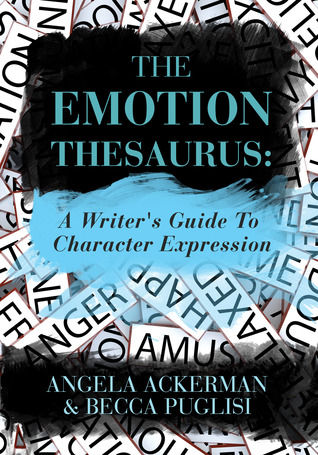
Every once in a while I’ll come across a book that I can’t help but rave about and recommend to everyone who will listen. The Emotion Thesaurus by Angela Ackerman and Becca Puglisi (who also run the ever-so-helpful blog The Bookshelf Muse) is one of those books. 

Before I rave about its awesomeness, here’s the Goodreads summary:
“One of the biggest problem areas for writers is conveying a character's emotions to the reader in a unique, compelling way. This book comes to the rescue by highlighting 75 emotions and listing the possible body language cues, thoughts, and visceral responses for each.  
Using its easy-to-navigate list format, readers can draw inspiration from character cues that range in intensity to match any emotional moment. The Emotion Thesaurus also tackles common emotion-related writing problems and provides methods to overcome them.  
This writing tool encourages authors to show, not tell emotion and is a creative brainstorming resource for any fiction project.”
I tweeted a while back that The Emotion Thesaurus is perpetually open in my Nook app while revising, and I wasn’t exaggerating. Whenever I reach a moment where I’m struggling to describe an emotion, or I get a CP note asking for more emotion from a character, I open up The Emotion Thesaurus.

It’s not a book that you necessarily read from cover to cover (although you’re more than welcome to), it’s a resource that you open when trying to describe a particular (or several) emotions. What I love about it is it not only lists body language cues, thoughts and physical responses, but it also lists cues of suppressed emotion (which I use all the time). As a bonus, it has writing tips at the end of every chapter.

To top it off, none other than Kristen Lamb recently recommended The Emotion Thesaurus in The Huffington Post (under #4) as have dozens of other writers across the web. And out of nearly 500 reviews on Goodreads, it has a 4.57 star average—and with good reason.

I honestly can’t recommend this book enough to writers of all stages. It will forever change the way you think about and write emotion—or at least, it did for me.

What resources do you use to help write emotion? 

Twitter-sized bites: 
Is THE EMOTION THESAURUS by @AngelaAckerman & @beccapuglisi on your bookshelf? Here's why it should be. (Click to tweet)  

Do you struggle with writing emotion? Then this wonderful writing tool may be exactly what you need. (Click to tweet

How to Create a Word Progress Chart in Excel

Photo credit: All screenshots are mine.
Many of you may remember last month’s post on why I keep track of my word count progress, in which I mentioned an awesome NaNoWriMo chart and referred back to this picture.

While I couldn’t find a widget to replicate it, thanks to some awesome Twitter people (@YeseniaVargas32 and @MadelineDyerUK), I was able to figure out how to create one with a spreadsheet on Excel.

I love it so much that I want to share the process with you guys, so that you can create your own motivational word count progress chart in ten easy steps. Enjoy!
  1. Determine your goals. This chart will really only be useful to you if you have some kind of goal to work with. It doesn’t have to be one that’s set-in-stone, but in order to make this chart as beautiful as possible, you’ll want to determine a final word count goal and a deadline. In my case, I’m aiming for 70,000 words in forty days. 

  2. Set up the spreadsheet. In the first row you’ll want to set up your headers. If all you’re recording is the data for the spreadsheet, then you’ll only need two columns: Date and Total Word Count. Under the “Date” column, plug in the first day you will begin writing, and the day after that in the next cell. It should look like this:


  3. Select data. Click cell 2A, hold down shift and click cell 3B (or the first empty cell under the “Date” heading, and the second empty cell under the “Total Word Count” heading).

  4. Create chart. Select “Charts”> “Column” > “Clustered Column.” You will now have a very ugly and empty chart, with two dates running along the horizontal axis and strange numbers on the vertical axis. Don’t panic; we’re going to make it beautiful. 

  5. Set the horizontal axis. Right now there should be two dates on the horizontal axis. Double click them to open up the Format Axis menu. Select the “Scale” tab, and set the Maximum to your deadline, and the Major Unit to 1 and click Ok.

  6. Set the vertical axis. Double click the numbers on the vertical axis to open up the Format Axis menu again, but this time for the vertical axis. Once again, go to the “Scale” tab. Set the Maximum to your word count goal and the “Major unit” to 5000 or so, and click Ok. All of the numbers on the vertical axis have now disappeared, but they’ll reappear once you enter some numbers. 

  7. Select data (again). Click the whitespace in your chart to select the chart and the data. A highlighted box should appear around your selected data that looks like this:


  8. Adjust data input. Select the bottom left or right corner of the bounding box and drag it low on the spreadsheet. The idea is to select one cell for every day that you will write (so if you’re giving yourself forty days, select forty cells). It doesn’t have to be perfect and you can always adjust it later, but the easiest thing to do is select way more cells than you’ll need. 

  9. Start recording your data. Your chart is now ready to use. All you need to record is the total word count of your manuscript day to day, and the date. If you miss a day, record it anyway, even though your word count won’t have changed from the day before. As long as you record everyday, you’ll have a lovely chart that looks similar to to the one at the top of the post. 

  10. Bonus steps: 

    1. To remove the legend: Click the “Series1” label on your chart and hit the delete key. 

    2. To change the colors: You may select different colors with “Chart Styles” (in the chart menu above the spreadsheet) or by adjusting the settings in the Format Chart Area menu, which you can access by right-clicking the chart. Using Chart Styles, however, is much easier.  

And there you have it! Now go have fun with your awesome new word progress charts.

Twitter-sized bites: 
Want a NaNoWriMo-style chart to keep track of your writing progress? Here's how to make your very own: (Click to tweet
Writer @Ava_Jae uses Excel to create a word progress chart while first drafting. Have you tried this trick? (Click to tweet)

Related Posts Plugin for WordPress, Blogger...